
Tachiyomi hasn’t been on the Play Store for a while, and a lot of the “how to install Tachiyomi” guides floating around still describe it as if nothing’s changed. It has. Here’s the current, accurate way to get a working Tachiyomi-based manga reader running on Android in 2026 — including what to install instead of the original app, and how to avoid the sketchy APK sites that show up in search results.
What Is Tachiyomi?
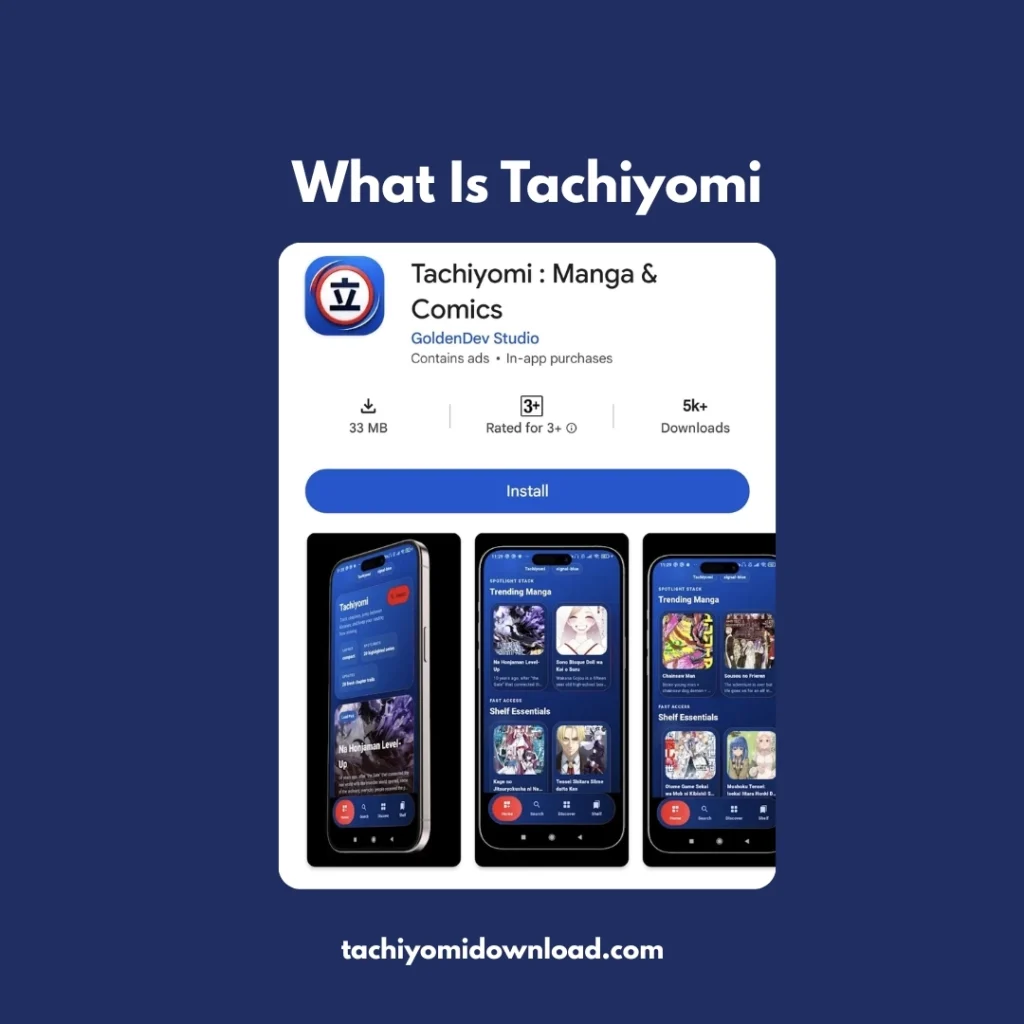
Tachiyomi is a free, open-source manga reader for Android, originally released in 2014. It doesn’t host or provide any manga itself — it’s a reading app that connects to separate “extension” sources you add yourself, then organizes your library, tracks reading progress, and syncs with services like MyAnimeList or AniList. That source-agnostic design is exactly why the project ran into legal trouble, which brings us to the part most guides skip.
Is Tachiyomi Still Available in 2026?
Not in its original form, and this is the single most important thing to know before you try to install it.
In January 2024, Tachiyomi’s developers received a cease-and-desist letter from Kakao Entertainment, a South Korean media company, demanding the project and its forks be shut down. In response, the core team announced that the official app would no longer be actively developed and removed the project’s repositories, including the extension list.
The good news: because Tachiyomi was open-source, the community didn’t let it die. Several forks picked up where it left off. Mihon, built directly from the last Tachiyomi codebase, is now the most widely used and actively maintained successor, and it’s the app most “Tachiyomi” guides in 2026 actually mean when they say the name. Other notable forks include TachiyomiSY, Komikku, and Aniyomi (which adds anime support).
So when this guide says “install Tachiyomi,” it covers both: grabbing an archived Tachiyomi build for reference, and — the path most readers should actually take — installing Mihon, which uses the same interface, the same backup format, and the same extension system.
What You Need Before You Install Tachiyomi
- An Android phone or tablet running Android 6.0 or newer.
- Roughly 50–100 MB of free storage for the app itself (manga downloads take more, depending on how much you save offline).
- A way to enable installs from outside the Play Store — Android calls this “Install unknown apps” or “Unknown sources,” depending on your version.
- A stable internet connection to download the APK and, afterward, the extension repositories.
Note: Tachiyomi and Mihon are Android-only. There’s no official iOS build. If you’re on iPhone, jump to the FAQ section below for alternatives.
how to install Tachiyomi (Mihon) on Android: Step-by-Step
These steps apply whether you’re installing the archived Tachiyomi build or, more likely, Mihon. The package name and download source are the only real differences.
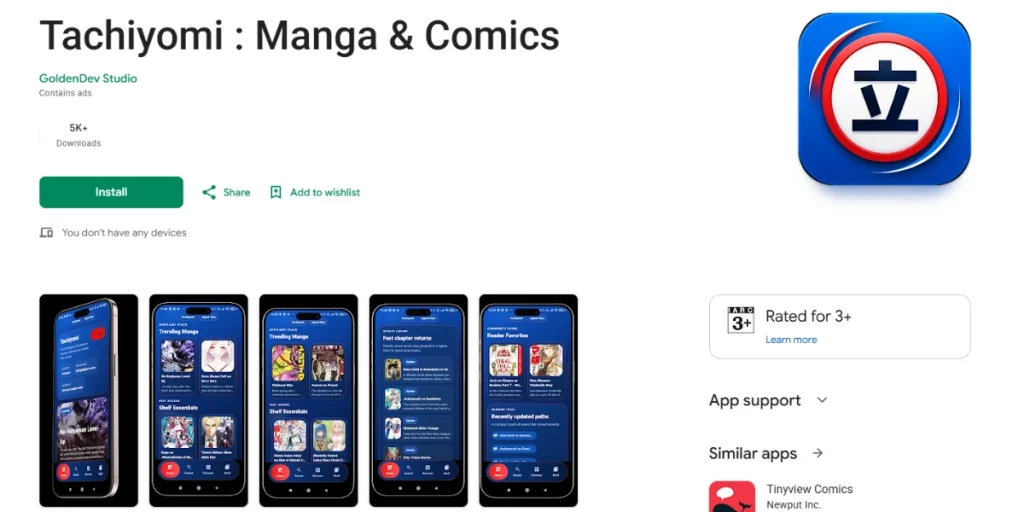
Step 1: Enable Installs From Unknown Sources
Go to Settings > Apps > Special app access > Install unknown apps (the exact path varies slightly by manufacturer). Select the browser or file manager you’ll use to open the APK, then toggle Allow from this source. You only need to do this once.
Step 2: Download the APK From the Official GitHub Release Page
Open your browser and go to the project’s official GitHub repository — mihonapp/mihon for the actively maintained app, or the archived tachiyomiorg repository if you specifically want a legacy build. Tap Releases on the right side of the page, open the latest version tagged Latest, then expand Assets and download the .apk file that matches your device (most users want the standard universal APK, not an architecture-specific one unless storage is tight).
Stick to this source. Third-party “Tachiyomi APK” download sites are a common way people end up with adware-bundled or outdated builds — GitHub Releases from the official repo is the only download path this guide recommends.
Step 3: Install the APK
Open your Downloads folder or notification, tap the downloaded .apk file, and confirm the install prompt. If Android blocks it, double-check Step 1 was applied to the specific app you used to open the file.
Step 4: Open the App and Complete First-Time Setup
Launch the app. Your library will be empty — that’s expected, since no extensions are bundled by default anymore (a direct result of the 2024 repository removal). You’ll add sources in the next step.
Step 5: Restore a Backup, If You Have One
Migrating from an older Tachiyomi install or a different fork? Go to Settings > Data and storage > Restore backup, then select your .tachibk backup file to bring back your library, categories, and reading history.
How to Set Up Extension Repositories After Installing
Because the original extension list was taken down, a fresh install won’t show any sources until you add a repository manually.
- Open Browse > Extension repos (wording varies slightly by app version).
- Tap the add icon and paste a repository URL from a source you trust — the app’s own official documentation is the safest place to find a current, maintained repository link.
- Tap Refresh in the Browse tab to load available extensions.
- Install the ones you want, then approve the “Trust” prompt Android shows for apps installed outside the Play Store.
Extension availability shifts over time as maintainers add, remove, or update sources, so don’t be surprised if a repository from an old bookmark no longer works — check the app’s official site for the current link before troubleshooting further.
Tachiyomi vs. Mihon: Which Should You Install?
| Original Tachiyomi | Mihon | |
| Active development | No (stopped Jan 2024) | Yes |
| Security/bug fixes | None going forward | Ongoing |
| Extension compatibility | Legacy only | Current |
| Backup format | Compatible | Compatible (imports Tachiyomi backups) |
| Recommended for new installs | No | Yes |
Unless you have a specific reason to run a legacy build, Mihon is the practical choice in 2026 — same experience, actively patched.
Installing on PC or Mac Instead?
Tachiyomi and Mihon are Android-native apps, so there’s no direct Windows or macOS build. Desktop users typically run them through an Android emulator, or use a companion server like Tachidesk/Suwayomi that lets a Mihon-compatible client connect from a browser. If that’s your setup, the platform-specific walkthroughs cover it in more depth: see Install Tachiyomi on PC for the general emulator approach, Tachiyomi Windows Guide for Windows-specific settings, and Tachiyomi Mac Guide for macOS.
Is It Safe to Install Tachiyomi in 2026?
The app itself — Tachiyomi’s original code and maintained forks like Mihon — is open-source and doesn’t contain malware. The risk isn’t the app; it’s where you get it. Because it’s no longer on the Play Store, dozens of copycat sites have appeared offering “Tachiyomi APK” downloads, and some of those bundle adware or ship outdated, unpatched builds.
- Only download from the official GitHub Releases page of the app/fork you’re installing.
- Avoid “modded,” “patched,” or “premium unlocked” APK variants — the base app is already free.
- Only add extension repositories linked from the app’s own official documentation.
- Keep Android System WebView and Chrome updated, since content rendering depends on them.
Common Installation Problems (Quick Look)
A few issues come up often enough to flag here — for full fixes, walk through Tachiyomi Android Installation Errors.
- “App not installed” error — usually a corrupted download or a conflicting older version; re-download the APK and, if needed, uninstall the old version first.
- Empty extension list after install — expected on a fresh install; you need to add a repository manually (see the setup section above).
- Extensions won’t load or chapters won’t open — update the extension inside the app and make sure Android System WebView is current.
- Blocked install prompt — recheck that “Install unknown apps” is enabled for the exact app you used to open the file.
Conclusion
Installing Tachiyomi in 2026 really means installing Mihon: enable unknown sources, grab the APK from the official GitHub release page, install it, and add an extension repository from official documentation to populate your library. Skip any site offering a “latest Tachiyomi APK” outside of GitHub, and you’ll avoid nearly every problem people run into.
Setting up on a computer instead? See Install Tachiyomi on PC, or the platform guides for Windows Guide and Mac Guide. Running into an error mid-install? The Android Installation Errors guide covers fixes in more depth than the quick list above.
Frequently Asked Questions
Is Tachiyomi still being updated in 2026?
The original Tachiyomi app is not — development stopped in January 2024. Its main successor, Mihon, is actively maintained and receives regular updates.
Why can’t I find Tachiyomi on the Google Play Store?
It was never distributed there; Tachiyomi and its forks have always been installed by sideloading an APK from GitHub, largely because of how the app’s extension system works.
Is Tachiyomi legal to use?
The app itself is a reader with no built-in content, similar to a web browser. What matters legally is which extension sources you choose to add and use — this guide doesn’t cover or recommend specific sources.
What is Mihon and should I use it instead of Tachiyomi?
Mihon is a fork built from Tachiyomi’s own codebase after the original project stopped development. It looks and works the same way and can import Tachiyomi backups, so it’s the recommended install for anyone starting fresh in 2026.
Can I install Tachiyomi on iPhone?
No — there’s no official iOS version. iPhone users typically look at separate iOS-native reader apps instead.
Why does my new install show “No extensions found”?
Because the original extension repository was removed in 2024, new installs no longer come with sources pre-loaded. You need to add a repository URL manually before anything appears in Browse.
Is it safe to download a Tachiyomi APK file?
Yes, as long as it comes from the official GitHub Releases page of the app or fork you’re installing. Third-party download sites are the main safety risk, not the app itself.